
How to Link Your Epic Games Account at epicgames.com/activate – 2026

Hellow! Guys! Who’s back? Hi, I’m Emanuel K, your friendly neighborhood cord-cutter, and I’m here with a new 2026 guide.
- What is epicgames.com/activate
- Guide to Activate Epicgames.com on Xbox, PlayStation, or Switch Console 2026
- How to Sign Up for an Epic Games Account?
- You can also sign up for an Epic Games account through the Epic Games Launcher. To do this:
- Epicgames.com Activate on Xbox One
- Link your Epic Games Account to PS4 or PS5
- Epicgames.com/activate Nintendo Switch
- How to Disconnect Your Console Account from Your Epic Games Account?
- Frequently Asked Questions
- What to do when I receive an error while logging into my Epic Games account?
- How do I connect a console account to my Epic account?
- Do I need a product key to activate games on Epic Games Launcher?
- Conclusion
If you’re reading this, your console just gave you an 8-digit code and told you to go to epicgames.com/activate – and you’re not quite sure what to do next. No worries, that’s what we’re covering today.
Quick note before we get started: this is an independent guide, not an official Epic Games page – we’re only here to help you through the real activation process step by step, with screenshots, so you don’t get stuck. Let’s get to it.
So here we start with the process of activating Epic Games with Xbox, PlayStation, and Switch consoles….
Quick refresher before we dive in – how much do you actually know about Epic Games? In short: they’re the studio behind Fortnite and Unreal Engine, and one of the biggest names in gaming and game development tech.
If you own game consoles like Xbox, PlayStation 4 or 5, or even Nintendo Switch, you must consider installing games like Unreal, Fortnite, Gears of War, and the Infinity Blade series (discontinued game).
Well, you must understand that these first-person and multiplayer games must be activated on your device at epicgames.com/id/activate before you get going.
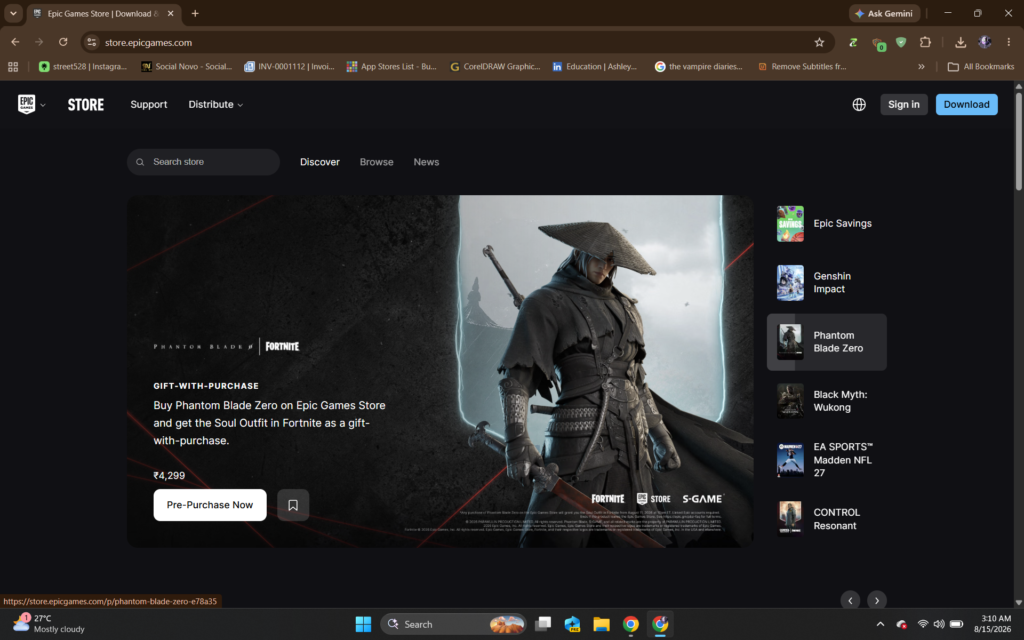
What is epicgames.com/activate
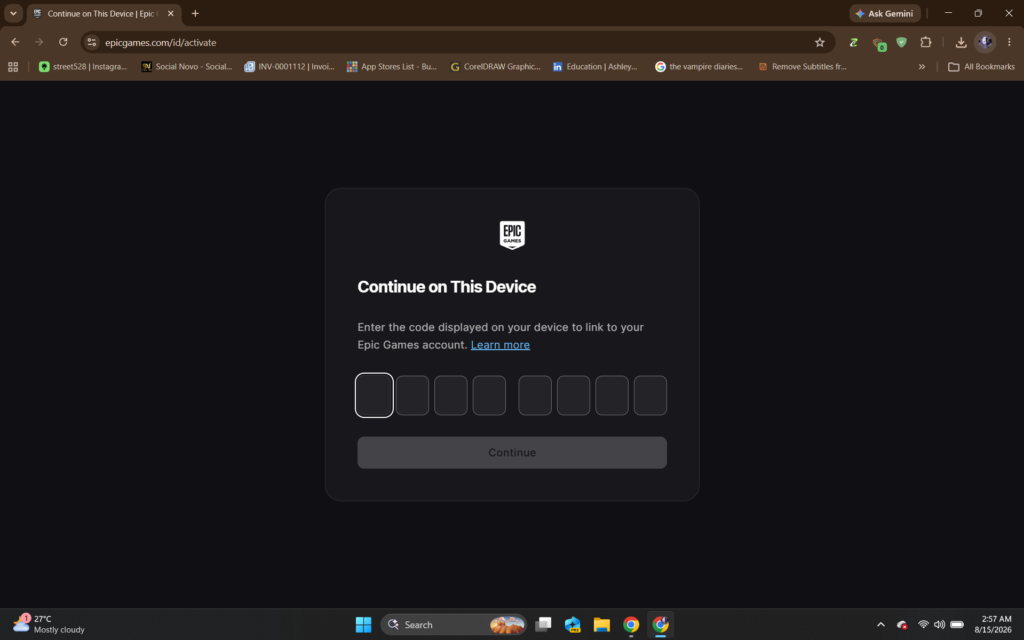
epicgames.com/id/activate is the official (authorized) activation link you get during the process. Along with the URL, you will see a unique 8-digit code on the screen.
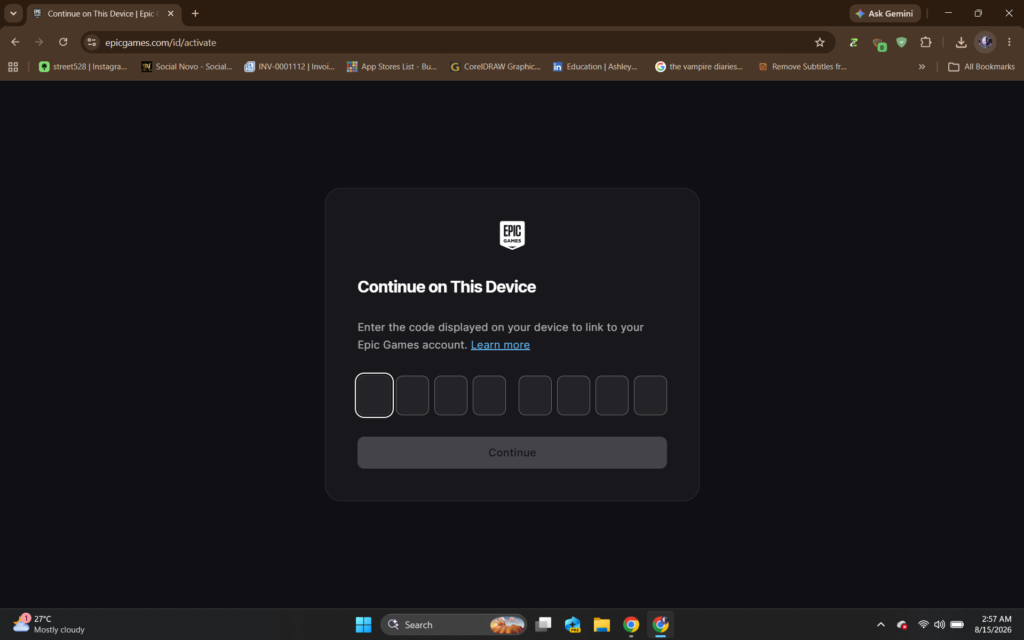
Note down the code, access epicgames.com/id/activate on a different device (phone or computer), and enter the code from your gaming console. Your Epic Games account will be linked to the game within seconds.
Guide to Activate Epicgames.com on Xbox, PlayStation, or Switch Console 2026
Linking your Epic Games account to your gaming console will give you access to cross-play, cross-progression, and cross-purchase features with other platforms.
Apart from walking you through the step-by-step activation process, we will also talk about how to sign up for an Epic Games account (if you don’t have one already) and disconnect your game console from your EG account.
How to Sign Up for an Epic Games Account?
To activate your Epic Games account at epicgames.com/id/activate, you will first need to sign up for an Epic Games account. Signing up for an Epic Games account is a simple process that can be done through the official website or at Epic Games Launcher. Here are the steps to sign up for an Epic Games account:
- Go to the official Epic Games website – www.epicgames.com.
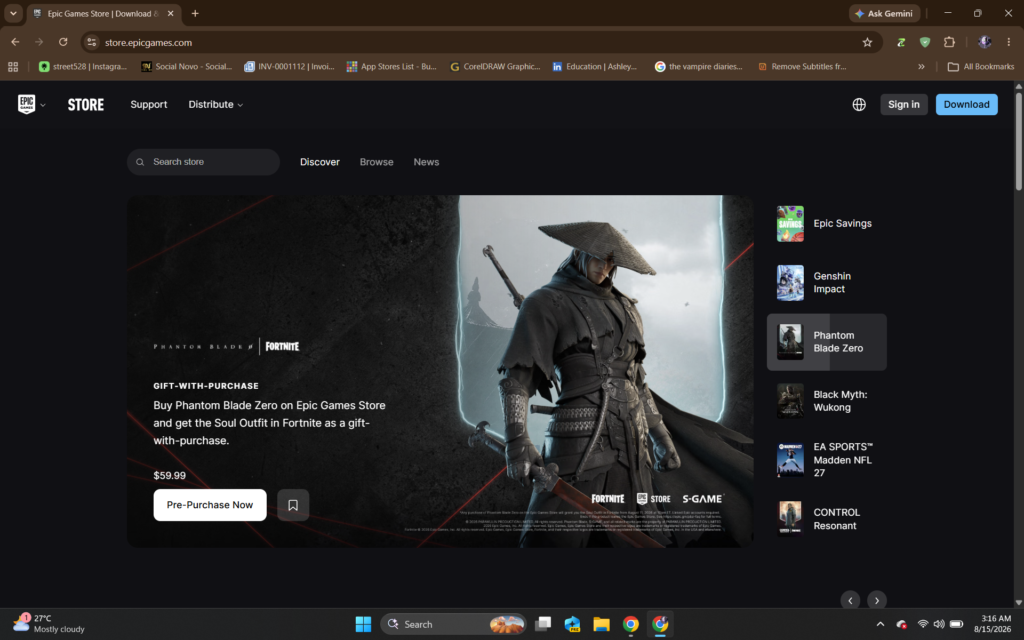
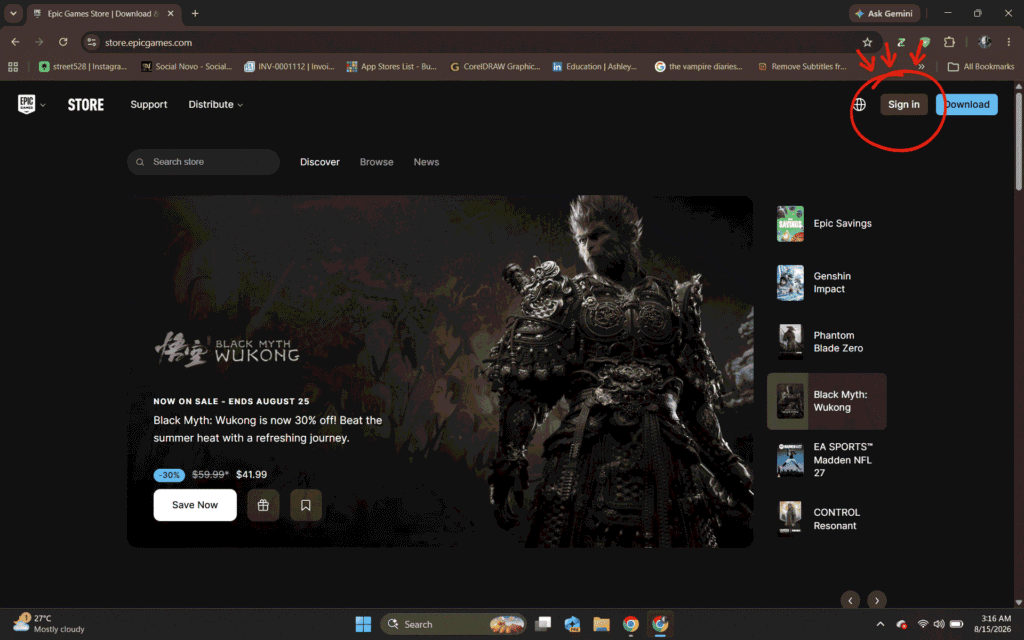
2. Click on the Sign In button in the top right corner of the page.
3. Scroll down and click on the Create an Account button.
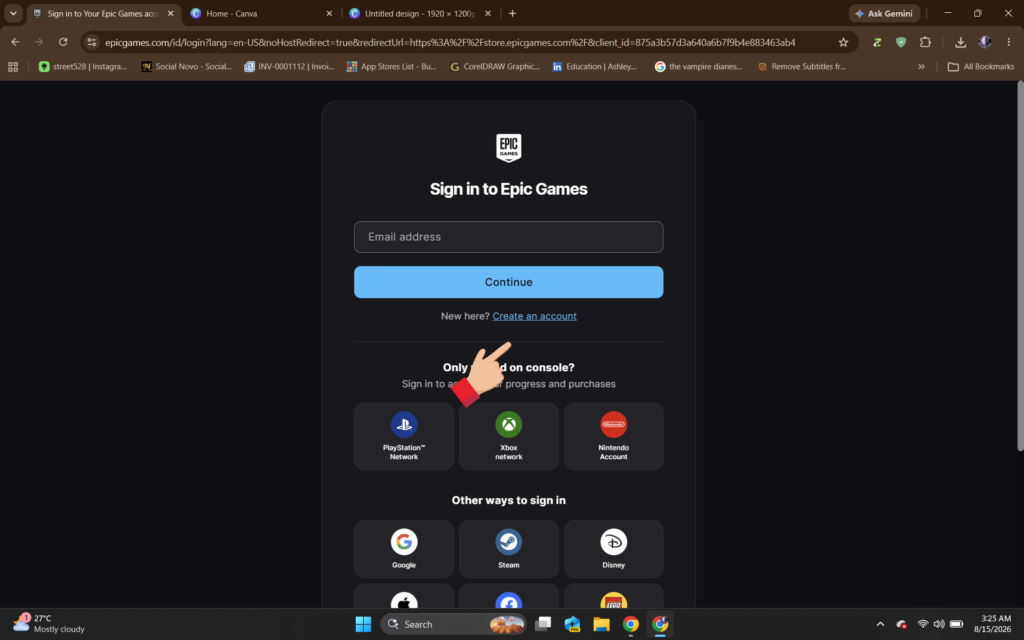
You can sign up by email or select an account (Facebook, Google, Xbox Live, Nintendo Account, or PlayStation).
Select an option and follow the on-screen prompts to create your new Epic Games account
You can also sign up for an Epic Games account through the Epic Games Launcher. To do this:
- Open the Epic Games Launcher.
- Click on the Sign In button from the top right corner.
- Click on the Create an Account button.
- Enter your email address and password, then click Sign Up.
- Verify your email address by following the link sent to your email.
Once you’ve verified your email address, you can use your Epic Games account to activate your device at www.epicgames.com/activate using the steps below.
Epicgames.com Activate on Xbox One
To link your Epic Games account to your Xbox, you must follow the step-by-step instructions below:
- Turn on your Xbox-connected TV and navigate to the Microsoft Store to install the game. (If not installed already)
- Launch the game on your Xbox and select the Link an Epic Games Account option.
- A new popup will appear on your TV, carrying the activation URL and 8-digit code to link your account.
- Now, open epicgames.com/id/activate on a phone or computer and enter the activation code.
- Click CONTINUE to access the sign-in page.
- Enter your Email Address and Password, or select any other option to sign in.
- After successful sign-in, your TV screen will refresh automatically.
Once your accounts are linked, you can access your Epic Games purchases and achievements on your Xbox console and vice versa.
Link your Epic Games Account to PS4 or PS5
PlayStation 4/5 are compatible with Epic Games. You can connect your Epic Games account to your game console to play all three versions of Fortnite – Fortnite: Save the World, Fortnite: Battle Royale, and Fortnite Creative. Here are the steps to do this:
- Install and launch the game on PS4/ 5 that you purchased through the Epic Games Store.
- Now, click Link an Account.
- You will now see an 8-digit activation code on your TV screen (The activation code is valid for 10 minutes)
- Visit epicgames.com/id/activate on another device.
- Type the registration code in the given field and click Continue.
- Enter your Email Address and Password to sign in to your Epic Games account on the following screen.
- Once signed in, you will see a confirmation message.
You are all set to play Fortnite and other Epic games on your PlayStation console.
Epicgames.com/activate Nintendo Switch
If you own a Nintendo Switch, here’s how to link your Epic Games account. The steps below are for activating Fortnite at https://www.epicgames.com/id/activate.
- Launch Fortnite on Nintendo.
- Click the Link an account option.
- On the next screen, you will see an activation code. (Save the code.)
- Now, open a web browser on your computer or mobile device and go to epicgames.com/id/activate.
- Enter the activation code from your TV screen and click CONTINUE.
- Sign in to your Epic Games account using the login credentials
- You will see the following SUCCESS message on the screen – “Your device has been activated on your account and is ready. The screen on your device will refresh shortly.”
After successful activation, you can play Fortnite on your Nintendo Switch.
Note: All the games available in the Epic Games Store are not compatible with Nintendo Switch, so check the game’s compatibility before purchasing.
How to Disconnect Your Console Account from Your Epic Games Account?
Follow the steps below to disconnect your console account (Xbox, PlayStation, or Nintendo) from your Epic Games account.
- Log in to your Epic Games account on a computer or mobile device.
- Follow the on-screen instructions to verify your email.
- Next, go to your Connected Accounts page.
- Click DISCONNECT (below the console name).
You have successfully disconnected the console account from your Epic Games account. However, keep in mind that unlinking your console account from your Epic Games account will affect all your progress, purchases, and achievements, so make sure you want to proceed before disconnecting the accounts.
List of Best Epic Games [Latest]
Here’s a list of top-selling Epic Games that you should consider.
- Fortnite – Battle Royale + Creative mode, Epic ka flagship game
- Rocket League – Free-to-play, car-soccer game;
- Fall Guys – Free-to-play party/battle royale
- Unreal Tournament series
- Gears of War
Frequently Asked Questions
What to do when I receive an error while logging into my Epic Games account?
It means you are logged into another console account that you don’t use with Epic. Ensure you log into Epic Games via this link.
How do I connect a console account to my Epic account?
If you wish to play Epic Games on your console, you must activate Epic Games at epicgames.com/activate using an activation code. After that, you can sign in with your account.
Do I need a product key to activate games on Epic Games Launcher?
If you purchased the game directly from the Epic Games Store, you don’t need a product key to activate games on Epic Games Launcher.
We hope the above tips come in handy to connect your game console account to your Epic Games account at epicgames.com/activate. Repeat the activation process if you run into an error, or tell us in the comment section below.
Conclusion
That’s it – once you know where to look, activating your Epic Games account on Xbox, PlayStation or Switch is a two-minute operation. Go to epicgames.com/id/activate, enter the code, log in, and you’re good to go for Fortnite (or whatever’s calling your name) with cross-play and cross-progression fully activated.
If you have a problem along the way, don’t panic – just redo the activation steps from the top, or leave a comment below and I’ll assist you in solving it. Until next time, happy gaming – Emanuel K, out. Haha.







💬 Discussion & Comments (0)
Leave a Comment
No comments yet. Be the first to share your thoughts!